
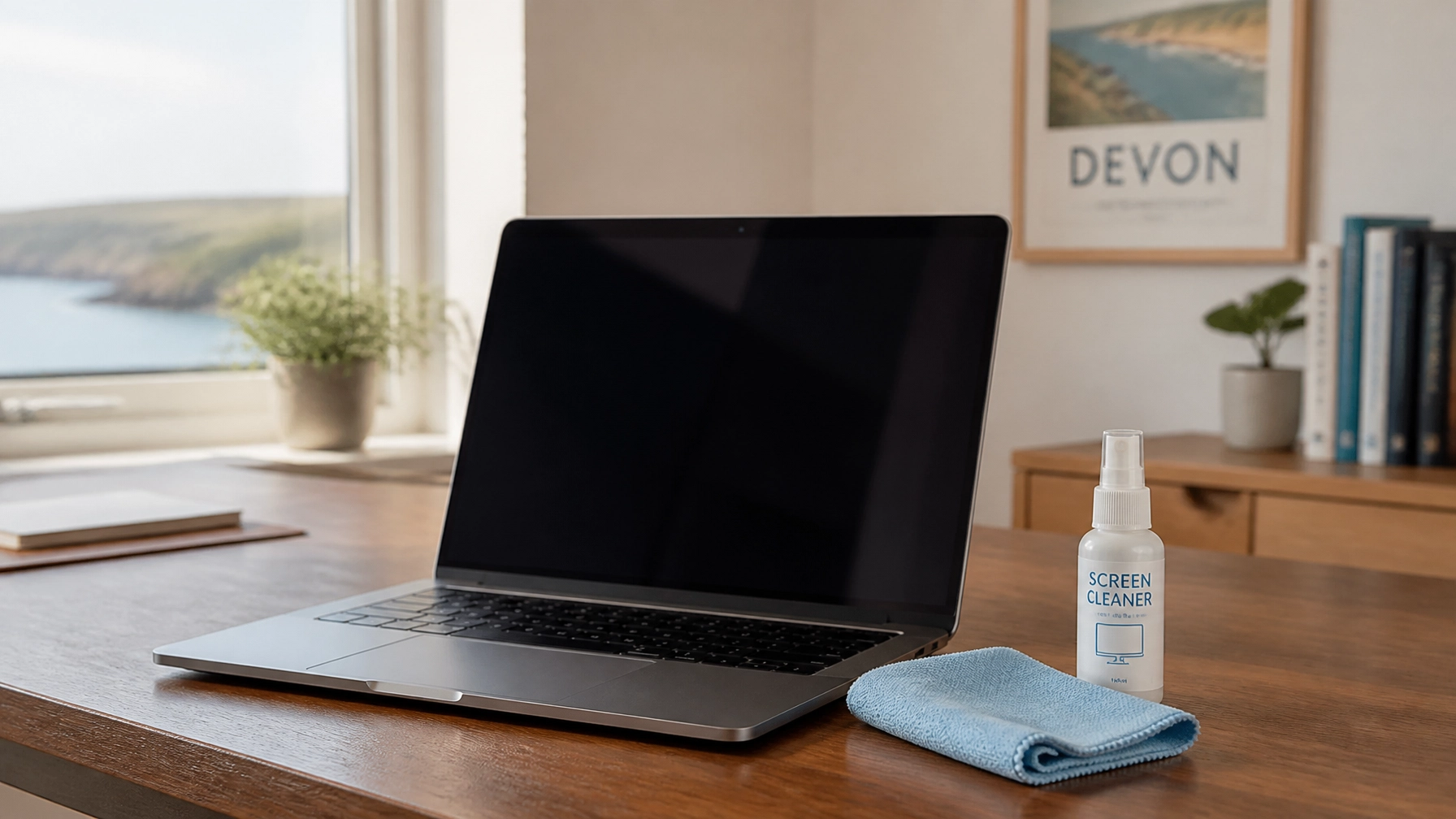
We have all been there. You are working away on a sunny afternoon in Tavistock, the light hits your laptop screen at just the right angle, and suddenly you realise your display is covered in a constellation of fingerprints, dust, and mysterious smudges. Then you look down at the keyboard and see enough crumbs to feed a small bird.
It is tempting to grab the nearest bottle of window cleaner or a piece of kitchen roll and give it a quick scrub. Please, stop right there. Your laptop is a delicate piece of engineering, and using the wrong tools or techniques can lead to permanent damage, from scratched coatings to fried internal circuits.
At ABC Service, we see the aftermath of "cleaning accidents" quite often in our workshop. Whether you are a business owner in Plymouth or a home user in Okehampton, keeping your tech clean is vital for its longevity, but doing it safely is even more important. We have put together this guide to help you achieve a sparkling finish without the risk.
Safety First, The Essential Preparation
Before you even think about applying a cloth to your device, there are a few non-negotiable safety steps to follow. Laptops and liquids are natural enemies, and even a small amount of moisture in the wrong place can cause a short circuit if the device is powered on.
- Shut it down completely. Don't just put it to sleep or close the lid. Turn the laptop off entirely.
- Unplug the power cable. You want to ensure there is no current running through the machine while you are cleaning it.
- Remove any accessories. Unplug your mouse, USB drives, and any external monitors. If your laptop has a removable battery, it is a great idea to take that out too.
- Clear your workspace. Make sure you are working on a stable, flat surface. Placing a soft towel or a clean mat under the laptop can prevent the outer casing from getting scratched while you move it around.
What Not to Use, Avoiding Hardware Heartache
Knowing what not to do is half the battle. Many common household cleaning items are far too abrasive or chemically harsh for modern electronics.

Avoid these items at all costs:
- Paper Towels and Tissues: They might feel soft to you, but at a microscopic level, they are abrasive. They can leave behind lint and even cause tiny "micro-scratches" on your screen that dull the finish over time.
- Window Cleaners (like Windex): Most contain ammonia or alcohol, which can strip away the delicate anti-glare or protective coatings on your LCD or OLED screen.
- Bleach or Harsh Chemicals: These can discolour the plastic and damage the sensitive components under the keys.
- Direct Spraying: Never, ever spray any liquid directly onto the laptop. Gravity is not your friend here; the liquid will inevitably run down into the bezel or between the keys, potentially reaching the motherboard.
Your Cleaning Toolkit, The Right Tools for the Job
You don't need a professional laboratory setup to get a great result. A few simple, affordable items: most of which we keep in stock at our Tavistock shop: will do the trick.
- Microfibre Cloths: These are the gold standard. They are designed to trap dust and oils without scratching. Ideally, have one for dry dusting and another for damp cleaning.
- Compressed Air: A can of "air duster" is essential for getting into the nooks and crannies of your keyboard and cooling vents.
- Distilled Water or Screen Cleaner: If you need moisture, distilled water is best as it doesn't contain the minerals found in tap water that leave streaks. Alternatively, use a specialist screen cleaning solution.
- Isopropyl Alcohol (70%): This is excellent for disinfecting keys and removing stubborn grime, but it should be used sparingly and never on the screen unless your manufacturer specifically recommends it.
- Cotton Swabs (Q-tips): Perfect for detail work around the edges of keys.
How to Clean Your Laptop Screen Safely
The screen is the most fragile part of your laptop. Treat it with the utmost care.

Step 1: The Dry Dusting
Start with a clean, dry microfibre cloth. Gently wipe the screen in long, horizontal or vertical strokes. Do not press hard. Often, this is all you need to remove loose dust and light fingerprints. Avoid circular motions, as these can sometimes grind grit into the screen.
Step 2: Dealing with Smudges
If there are stubborn marks that the dry cloth won't budge, it is time for a tiny bit of moisture. Dampen a corner of your microfibre cloth with distilled water or a dedicated screen cleaner. The cloth should be damp, not wet. If you can wring a single drop of liquid out of it, it is too wet.
Wipe the affected areas gently. Once the smudges are gone, use the dry part of the cloth to buff the screen to a streak-free finish.
Giving Your Keyboard a Deep Clean
The keyboard is usually the grimiest part of any computer. Between skin oils, sweat, and food crumbs, it can become a breeding ground for bacteria.

Step 1: The Great Shake
Open the laptop and turn it upside down over a bin or a towel. Give it a very gentle shake and a few light taps on the back. You might be surprised (and slightly horrified) at what falls out.
Step 2: Compressed Air
Keep the laptop at an angle and use short bursts of compressed air to blow out the remaining debris from between the keys. Work from one side to the other, ensuring you don't blow the dust further into the machine. Tip: Always keep the can of air upright to prevent liquid propellant from spraying out.
Step 3: Disinfecting the Keys
Dampen a microfibre cloth with a small amount of 70% isopropyl alcohol. Wipe across the tops of the keys and the palm rest. For the sides of the keys or the gaps in between, lightly moisten a cotton swab with alcohol and run it around the edges. This will remove that shiny, oily build-up that accumulates over time.
Don't Forget the Vents and Ports
While you have the cleaning kit out, it is worth checking the cooling vents and USB ports. Dust build-up in the vents can lead to overheating, which slows down your processor and can eventually cause hardware failure.
Use your compressed air to blow out any visible dust bunnies from the vents. If you notice a significant build-up that won't move, it might be time for a professional internal clean. At ABC Service, we offer a comprehensive Computer Repair and Servicing where we can strip down the device and clean the internal fans and heatsinks properly.
Keeping it Clean, Prevention is Better Than Cure
Maintaining a clean laptop doesn't have to be a major chore if you follow a few simple habits:
- Wash your hands: It sounds simple, but clean hands mean fewer oils transferred to your keys and screen.
- No eating or drinking: Try to keep snacks and drinks away from your workspace. A spilled coffee is the number one cause of laptop "death" we see in our workshop.
- Close the lid: When you aren't using your laptop, close it to prevent dust from settling on the screen and keyboard.
- Use a sleeve: If you travel between Tavistock and Plymouth for work, keep your laptop in a protective sleeve inside your bag to keep lint and debris out of the ports.
When to Call in the Experts
Sometimes, a simple wipe-down isn't enough. If you have a sticky key that won't respond, or if you have accidentally spilled liquid on your device, do not try to fix it yourself. Turning it on to "see if it still works" is the worst thing you can do.
Bring it straight to us at ABC Service. We are located at 69 West Street in Tavistock, and we support homes and businesses across Devon and Cornwall. Our experienced technicians can perform Advanced Repairs and data recovery if the worst happens. We pride ourselves on honest, transparent pricing and a friendly, local service that you just won't get from a national call centre.

Summary and Key Takeaways
A clean laptop is a happy laptop. By following these safe cleaning steps, you can keep your device looking great and running smoothly:
- Always power off and unplug before cleaning.
- Use microfibre cloths and avoid paper-based products.
- Never spray liquid directly onto the device.
- Use compressed air for the keyboard and vents.
- Seek professional help for internal cleaning or liquid spills.
If you need any cleaning supplies or expert advice on looking after your tech, feel free to pop into our shop or contact us today. We are here to keep your technology running perfectly!